
Screen Comfort: Contrast, Bias Lighting & Daily Display Habits
Staring at modern high-resolution displays for 8 to 10 hours daily is common for programmers, students, and remote professionals. Discover evidence-conscious adjustments to calibrate display brightness, reduce pupil fatigue, and maintain tear film stability.
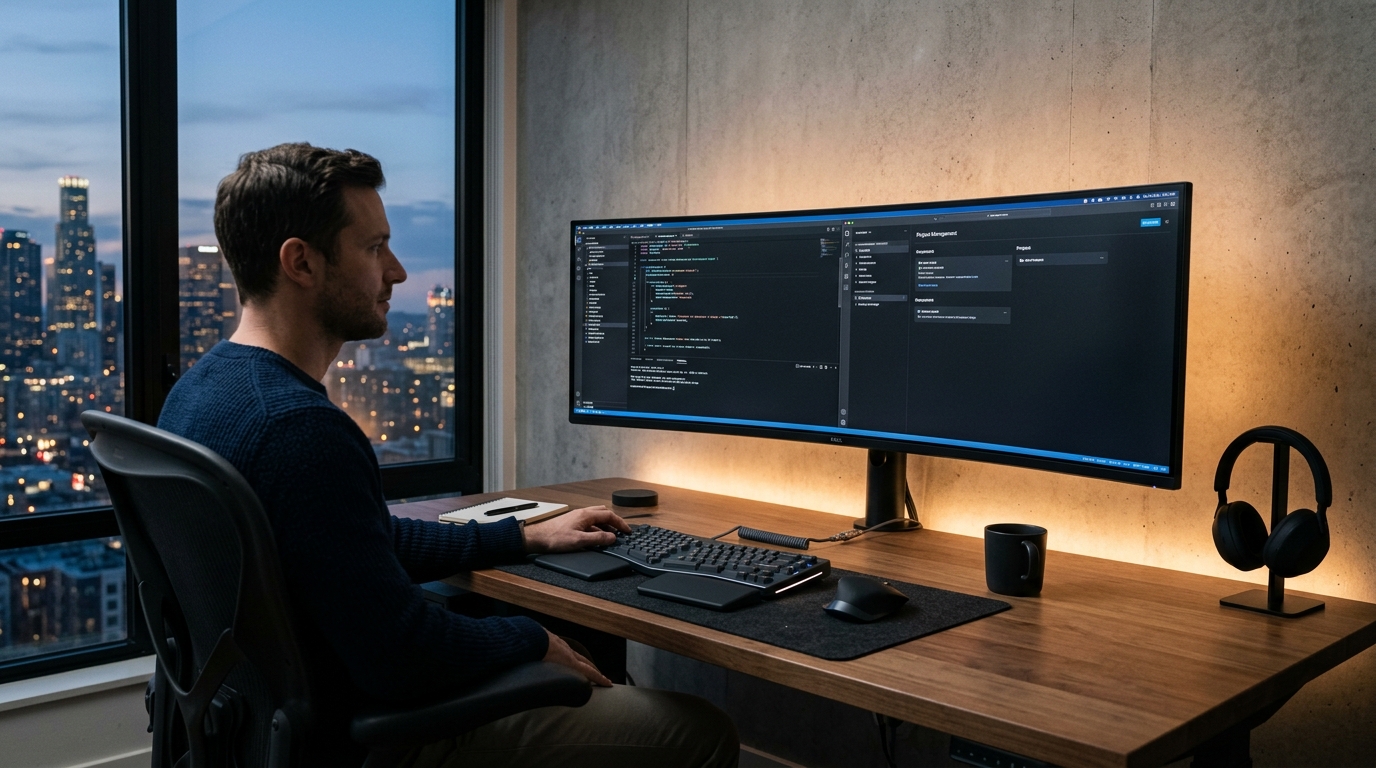
Screen Brightness: The "White Paper" Calibration Test
One of the most frequent causes of digital eye discomfort is a monitor that glows like a lightbulb in a dim room, or a screen that is too dim in a sunlit space.
The Simple White Paper Test
Take a standard sheet of clean white bond paper and hold it directly beside your monitor while viewing a blank white document (like Google Docs or Word). Adjust your monitor's brightness slider until the white on your screen matches the brightness of the physical sheet of paper under your current room lighting. If your screen looks like a glowing beacon, it is too bright. If it appears grey and muddy, it is too dim.
Bias Lighting: Why Backlighting Your Monitor Works
When you work in a dimly lit room, your pupils dilate to take in the surrounding darkness. When you gaze at a bright screen, your pupils want to constrict. This constant tug-of-war strains the iris muscles.
Bias lighting is a low-intensity, diffused light strip placed directly behind your monitor to illuminate the wall behind the display. By washing the rear wall with gentle neutral light (around 3000K to 4000K), you raise the ambient baseline without shining any light directly onto the screen. This drastically reduces perceived contrast and pupil stress during evening work sessions.
Text Scaling: Stop Squinting and Leaning
Many modern laptops pack high-resolution 2.5K or 4K displays into compact 13-inch or 14-inch screens. Running them at 100% display scaling renders system text tiny, forcing users to lean forward into poor neck posture.
- In Windows 11: Navigate to Settings > System > Display > Scale and set scaling to 125% or 150%.
- In macOS: Go to System Settings > Displays and select a "Larger Text" scaling profile.
- In Web Browsers: Press
Ctrl + Plus(orCmd + Plus) to set default zoom to 110%–125%. Text edges remain pin-sharp while your eyes read effortlessly from a full 60 cm distance.
The 20-20-20 Habit: Relieving Focusing Spasms
When focusing on objects closer than 1 meter, the ciliary muscle inside the eye contracts to change the lens shape. Sustained close-up work can cause this muscle to lock into a mild spasm, leading to temporary distance blurriness when you look up.

- Every 20 minutes: Pause your typing or reading.
- Look 20 feet (6 meters) away: Gaze out a window at a tree, cloud, or the farthest wall in your home.
- For at least 20 seconds: Blink completely 3 to 4 times to refresh your corneal tear film.
Managing Dry Eyes in Air-Conditioned Spaces
During intense screen focus, our subconscious blink rate drops from an average of 15–20 blinks per minute down to just 5–7 blinks per minute. In air-conditioned offices or bedrooms with electric desk fans blowing across the room, moisture evaporates rapidly from the cornea.
Actionable adjustments:
- Redirect Fan Louvers: Position your electric stand fan or air conditioner louvers so air circulates around the room rather than blowing directly into your face or eyes.
- Practice Deliberate Full Blinks: Make sure your upper and lower eyelids make complete contact every few minutes.
- Consider Preservative-Free Lubricating Drops: For persistent dryness, discuss over-the-counter lubricating artificial tears with a pharmacist or optometrist.